Getting Started
Installing 3D Slicer
MassVision is hosted in 3D Slicer image computation platform. Please ensure that you installed the latest stable version of 3D Slicer on your system. The detailed instruction for installation and system requirements can be found on the official 3D Slicer Installation Guide.To learn more about the platform and its applications, please refer to the official 3D Slicer Documentation.

Installing MassVision
Open 3D Slicer.
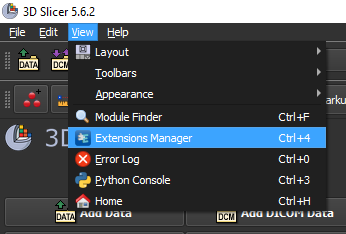
Select “Extensions Manager” from the “View” menu at the top of the screen.
Search for “MassVision” in the top right box and install the extension.
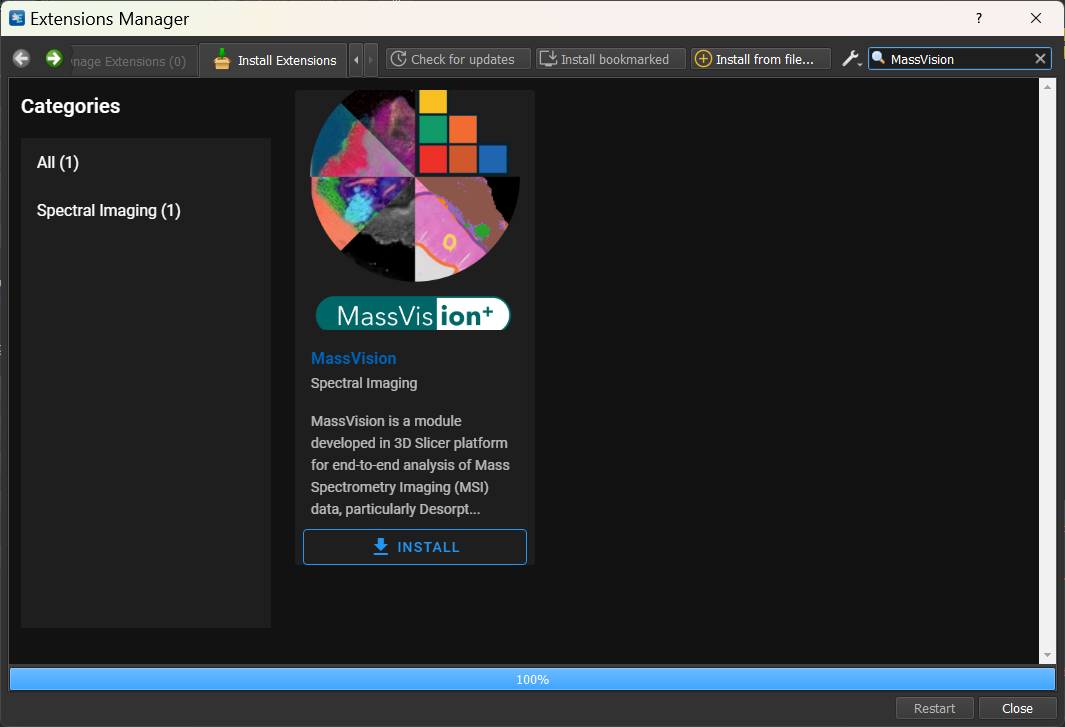
The 3D Slicer should be restarted to complete the installation.
Opening MassVision
Open 3D Slicer
Go to the ‘Modules’ section of the toolbar (top left) and click on the magnifying glass
 .
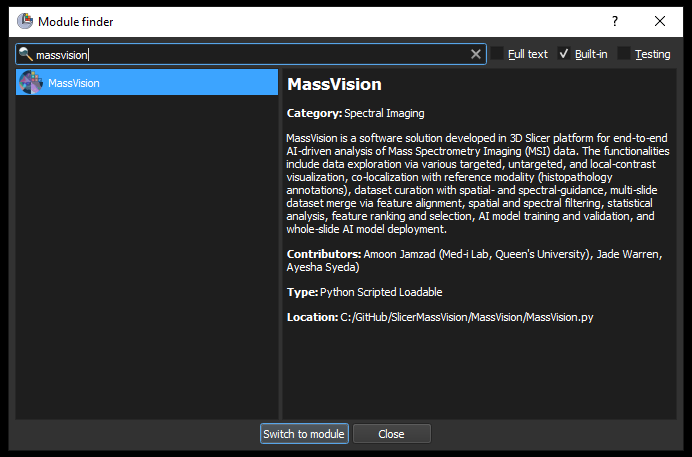
.Search for “MassVision” and switch to the module.
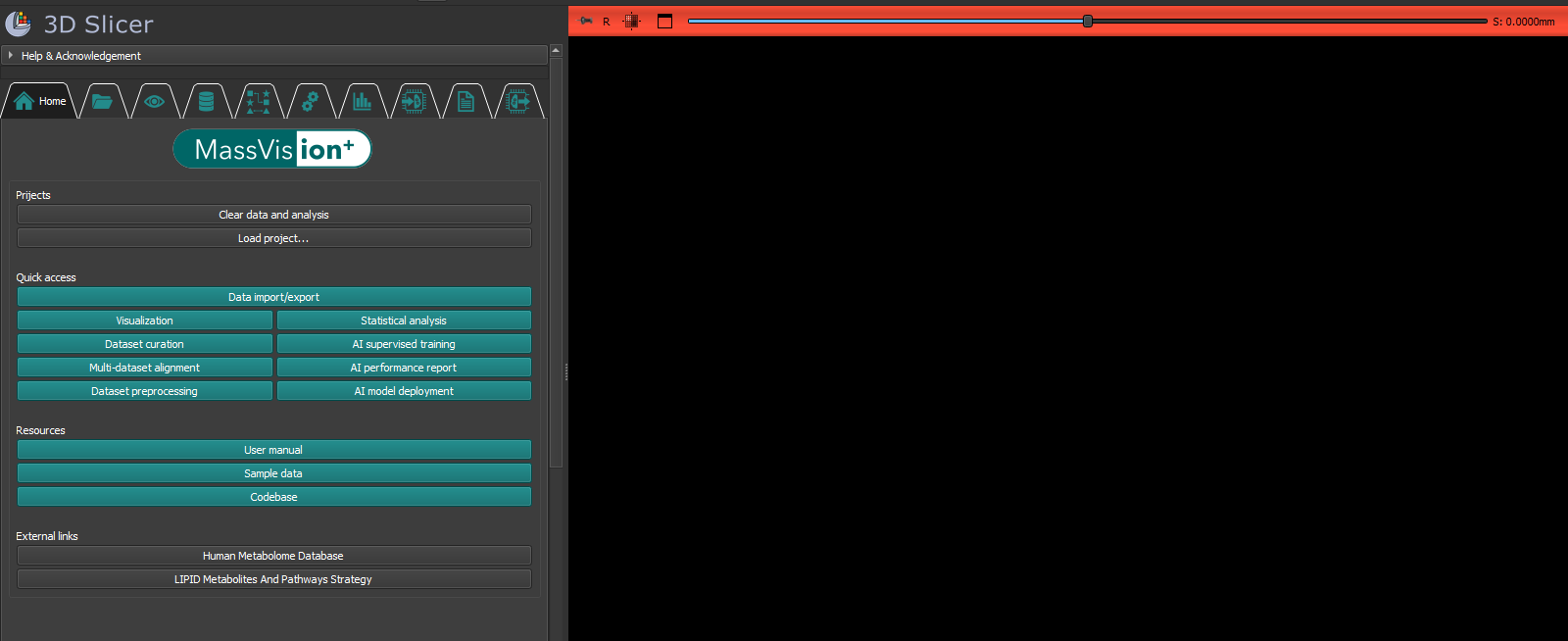
Once the module is open, you have access to all tabs for performing your analysis:
Test Data
MassVision provides users with test data for exploring and evaluating its functionalities. The data can be downloaded from here .
The test data includes a sample MSI data in both structured CSV and hierarchical HDF5 format, along with the corresponding histopathology image in TIFF format. The data is collected using DESI modality from a colorectal tissue slide. The raw dataset is released with MassVision and available in MetaboLights with the identifier MTBLS12868 .